
Perform this procedure only if you are using Internet Explorer version 7.0 or higher. If you are using an older version, you can download the latest version, then return to this setup procedure, from: http://Windowsupdate.Microsoft.com.
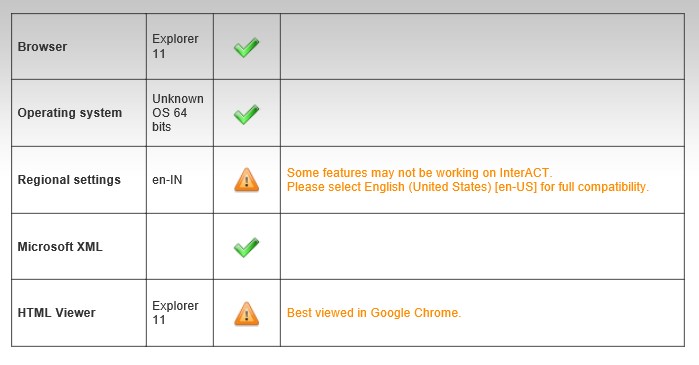
You can test your current system to verify the browser and operating system. Click Run Test for your results. An example dialog displayed after the test is performed is shown next.
When using Internet Explorer with InterACT
-
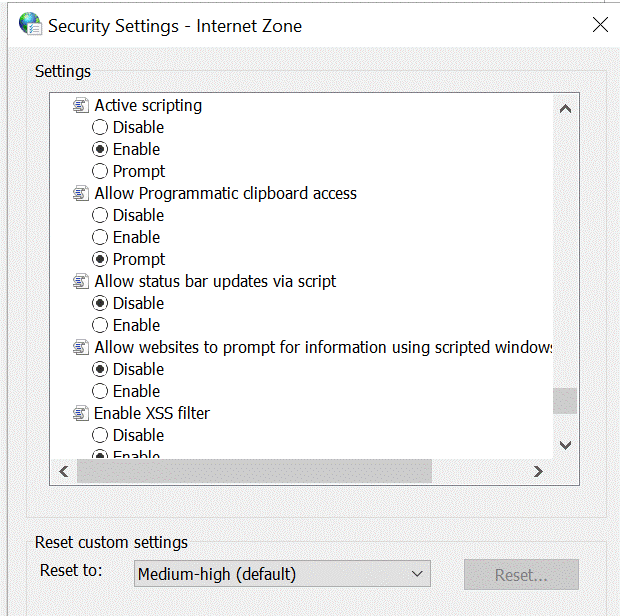
Internet Security setting must be set to "medium".
-
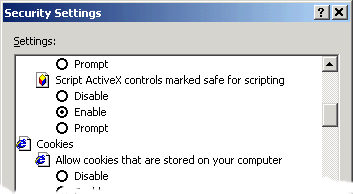
"Script ActiveX controls marked safe for scripting" must
be enabled. You will not be able to upload files in real-time to
InterACT if this setting is disabled. To configure this setting: Select
the menu option Tools -> Internet Options... -> Security tab ->
Custom Level... tab -> ActiveX controls and plug-ins -> Script
ActiveX controls marked safe for scripting -> select [Enable].
- Pop Up Blockers. The highly visual nature of InterACT often requires multiple browser windows. These multiple browser windows will pop up automatically as required. It is important that your browser be configured to allow pop ups from *.slb.com. It should also be noted that if Google and Yahoo tool bars are installed, they should also be configured to allow pop ups from *.slb.com.
 |
 |
Setup and Clear the Internet Cache
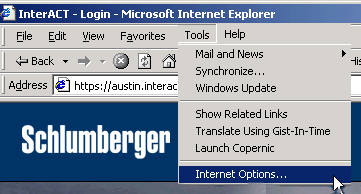
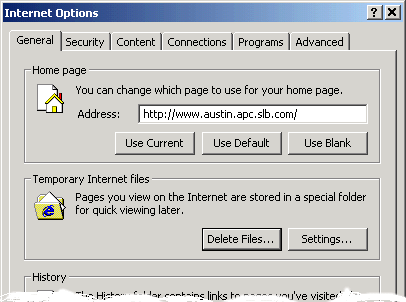
From the Internet Explorer (IE) browser, select the menu option Tools -> Internet Options..., and then select the Settings... button from the Internet Options window.
 |
 |
-
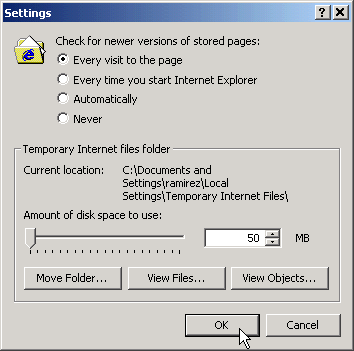
For the "Check for newer versions of stored pages" option,
select "Every visit to the page."
- Verify the "Amount of disk space to use" for the Temporary Internet files folder is set to 50Mb or less, as illustrated above, and then click OK. Your computer then reconfigures the amount of space being used by IE, and then displays the Internet Options... -> General tab dialog window.
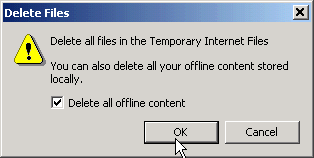
- Click the Delete Files... button (left of the Settings... button just used). A Delete Files dialog box displays. Select the "Delete all offline content" box to display a checkmark, and then click OK. This may take a minute or so to complete.
Configure the Internet Security Setting
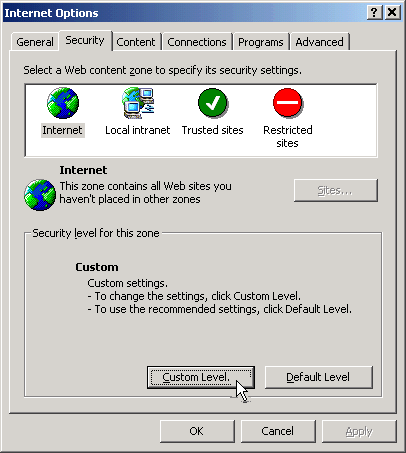
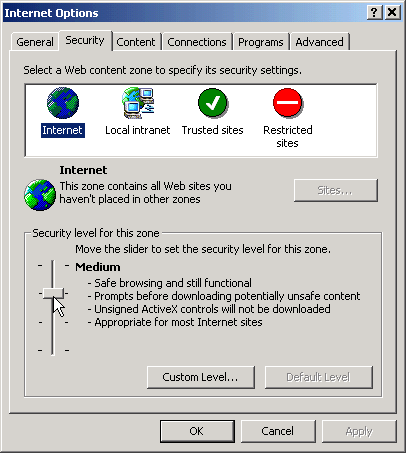
From the Internet Explorer (IE) browser, select the menu option Tools -> Internet Options..., and then click the Security tab. IE then displays the Internet Security dialog window. Verify that the "Security level for this zone" is set to "Medium."
To set the Security level to "Medium":
-
Click the Default Level button at the bottom right
of the dialog box.
-
Move the slider to set the security level zone for "Medium."
-
Click Yes, or OK, for any prompts given
from this action.
-
Ensure the "Security level for this zone" now shows "Medium."
Click OK.
- Close all IE windows. Reopen IE and log back into InterACT.
Adding as a Trusted Site
If the previous steps did not resolve the problem, repeat the procedure and double-check to ensure that the Internet Security setting is still set to "medium." From the Internet Explorer (IE) browser, select the menu option Tools -> Internet Options..., and click the Security tab. When you select the Security tab, IE displays the Internet Security dialog window.
-
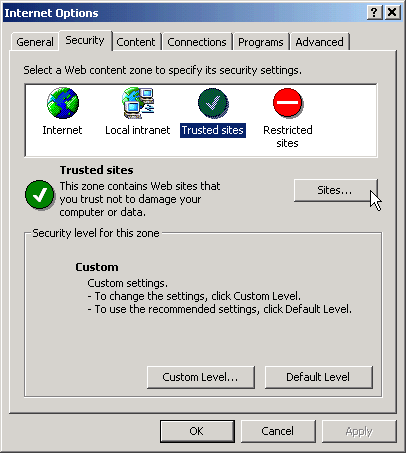
Click on the Trusted Sites icon (green circle
with a white check mark) in the Security area.
- Click the Sites... button at the center right of the dialog box.
-
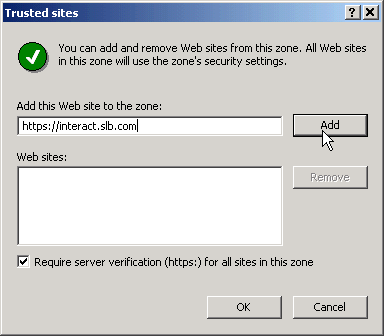
Type into the "Add this Web site to the zone:" box the
following address: HTTPS://*.SLB.COM.
It is not case-sensitive and not necessary to have this in all CAPITAL
letters.
-
It is not necessary to keep the "Require server verification
..." box checked. Because the address is HTTPS://, the system
will know that it is a secure Web site.
-
Click Add beside the "Add this Web site to the zone"
text box and then click OK.
- Continue with the next steps to configure the privacy setting.
Configure the Privacy Level
From the Internet Explorer (IE) browser, select the menu option Tools -> Internet Options..., and click the Privacy tab. When you select the Privacy tab, IE displays the Settings dialog window.
-
Click the Default button.
-
Ensure that "Medium" is selected as the privacy setting
for the Internet zone.
-
Click OK to accept those settings and close the
Internet Options dialog window.
-
Close all IE windows. Reopen IE, and log back into InterACT.
If after following this entire procedure, you are still unable to upload, download, or view InterACT properly using Internet Explorer, please click the Customer Service link from the InterACT login page. Contact the InterACT representative using the email, telephone number, or fax number listed.